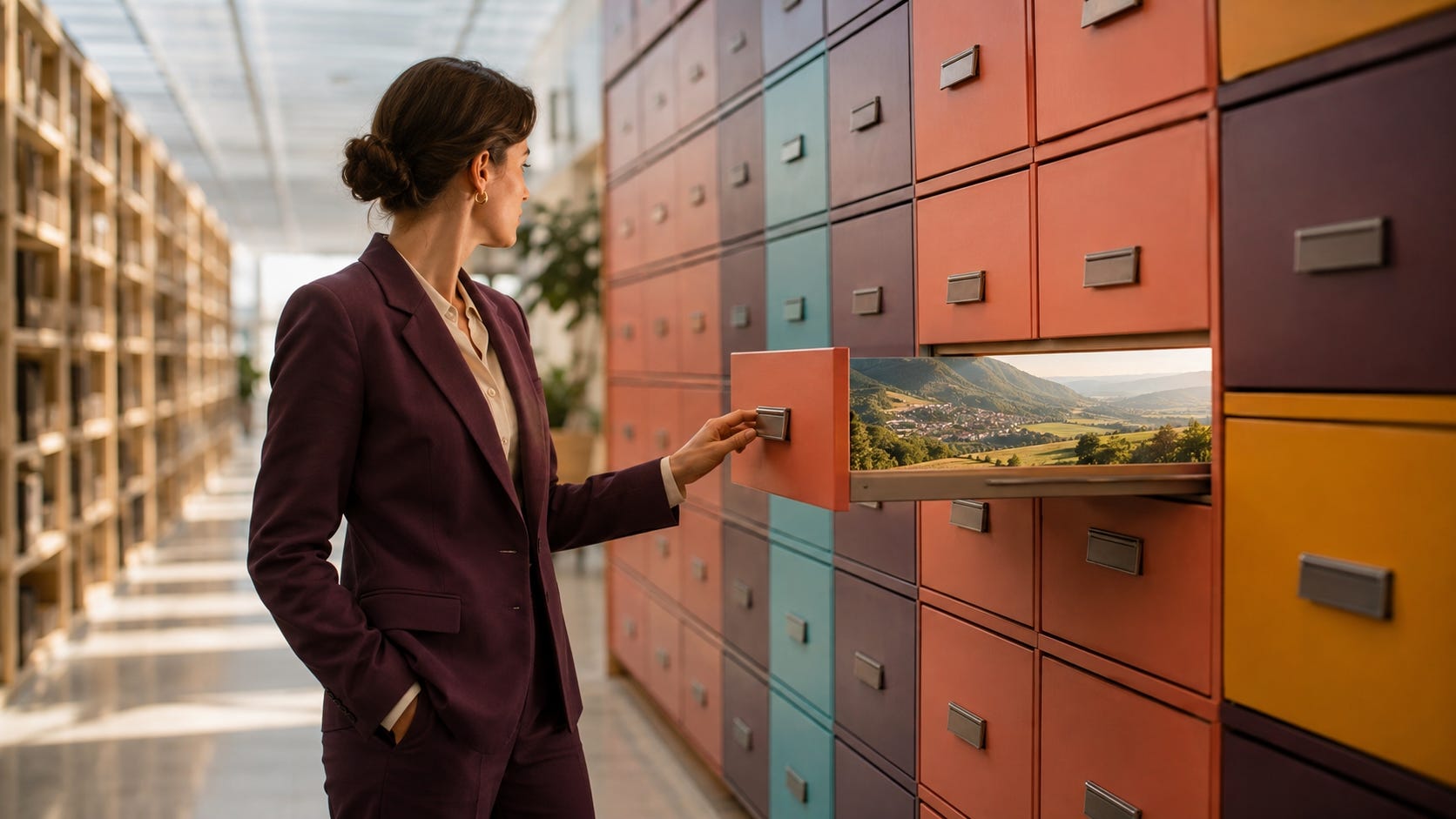
Claude Cowork will connect to your network drive. Then it will crawl.
TL;DR. If you point Claude Cowork at a folder that lives on a network drive, a shared server, or a synced cloud folder, everything slows down. My estimate is several times slower at the floor, and ten times or worse once you’re across thousands of files. Copy what you need onto your own machine, work there, and put the results back when you’re done. If the files are too big to copy, narrow what you’re asking for instead.
Cowork’s folder picker will accept your firm’s network drive without a word of warning. That’s the trap. It takes the path, tells you the folder is connected, and gives you no hint that you just made every task in that session several times slower.
Cowork doesn’t work inside your network drive. It works from your machine and reaches across to that drive for every single thing it needs. When the folder is on your own hard drive, the reach is instant. When it’s on a server down the hall or somewhere in the cloud, every reach waits on the network.
Connecting a folder and working in one are different things. The picker only handles the first.
A word on my numbers before we go further. I have not run a stopwatch on this. I built a model of the round trips Cowork makes and ran it at different file counts. The slowdown figures in this piece come out of that model, so treat them as estimates. I would rather tell you that than hand you a precise-looking number I made up.
What counts as a network drive
This catches more people than you’d expect, mostly because “network drive” doesn’t sound like it describes what your firm actually uses.
It probably does. A mapped drive letter is one. So is a folder IT shares across the office. So are OneDrive, SharePoint, Google Drive, Dropbox, and the desktop sync folder your document management system installs. Those folders sit in Finder or File Explorer next to everything else on your machine. The files themselves live somewhere else.
The synced folders are the worst of the bunch, which surprises people, because those are the ones that feel closest to home. What’s sitting on your disk is often just a placeholder. The real file has to come down from the cloud before Cowork can read a word of it, one document at a time.
Why the file count decides everything
When Cowork writes a script to pull information out of the pile, its thinking time barely changes whether you hand it fifty documents or five thousand. The fetching time changes with every one. So a small job on a network drive is mildly annoying, and a big job on the same drive is a different afternoon entirely. Run three hundred files and you’ll notice. Run three thousand and you’ll go get lunch.
That’s also the moment a lot of firms reach for Claude Code, which is what I reach for myself whenever the file count gets high. It doesn’t rescue you here. Claude Code works by searching across a whole folder tree, and searching is the one thing that scales directly with how many files you’ve got. Point it at a network drive and you’ve aimed the most file-hungry tool at the slowest possible place to put files.
One more thing, if your files are big. Scanned exhibits and deposition sets can run hundreds of megabytes each, and a thousand of those is a couple hundred gigabytes. At that size, copying to your laptop becomes its own problem. You’re still moving every one of those gigabytes, and they may not fit on the drive. When the files are that big, narrow the job instead. Tell Cowork you need the caption, the filing date, the page count, and nothing else, and it stops dragging whole documents across the wire to find them.
One rule fixes most of this, and it costs you nothing. Name the file you want. When you point Cowork at a folder and ask it to go find something, it has to search, and searching across a network drive is where your afternoon disappears.
Why IT says no to copying files local
Now for the part where I tell you to copy client files onto your laptop, and your general counsel stops me right there.
She’s right to. The files live on the share for a reason. Retention runs there. Ethical walls get enforced there. It’s where the record lives when a court comes asking. The firm spent a decade getting matter files off individual laptops, and “just copy it local” is the exact sentence that decade was spent fighting. I have never seen that objection lose an argument inside a firm, and it shouldn’t.
So make it a checkout. You take the smallest set of files that answers the question, you work on your own machine, you put the output back on the share, and you clear out the working copy when you’re finished. Written down, that’s a procedure your GC can approve in an afternoon. Left unwritten, it turns into associates keeping client folders in their Documents directory forever, which is a different problem and a worse one.
The scheduled run that wrote nothing
Slow is annoying. Slow is also visible, which makes it the good outcome.
The failure that worries me is the one you can’t see. On March 31, a user filed issue 41687 against Claude Code. His Z: drive was mapped to Zoho WorkDrive. Cowork on Windows accepted it in the folder picker and then failed to write a single file to it. On April 28, issue 54435 reported the same class of failure on a Mac. Scheduled collector runs against a synced Google Drive folder produced zero of sixteen expected files. That happened twice. Interactive chat sessions in the same session mounted the same folder and wrote to it fine. Anthropic closed both reports as “not planned.”
Both runs logged what went wrong. Nobody was reading. If you’re sitting at the screen, you see it. If it’s a task you scheduled to run overnight against a shared drive, that message lands in a transcript you’ll never open. You find out days later, when somebody goes looking for a document nobody wrote.
Slow costs you an afternoon. Unread costs you a deliverable.
None of this is a knock on the tool. The folder picker just needs to warn you before it takes the path.
What to do Monday
This is the same instinct you have about a case file. You don’t try to read a deposition through a window in another building. You go get it and bring it to your desk, and when you’re done it goes back on the shelf.
Three moves.
Connect the smallest folder that answers your question, and name the specific file in your prompt instead of asking Cowork to go hunting for it.
If those files live on a share, copy them to your machine first, do the work, put the result back, and clear the copy. Write that down as a checkout procedure and walk it past your GC this week.
Any time a task runs without you watching, open the destination folder and confirm the file is there. The summary will tell you it worked either way.
The picker will let you point at the share. Copy the files anyway.
Thank you for being a reader. If you enjoyed this, please share it with others.
Magnus definitely thinks this is his couch.