


The Real AI Pivot Is Happening Now
For the past year, most organizations have treated Generative AI as a content engine - a tool for drafting emails, summarizing reports, or brainstorming marketing copy. While valuable, this limits the technology to the role of a hyper-efficient writer. The true strategic pivot is happening right now, and it is far more profound: AI is evolving from a chatbot that talks into an agent that acts.
We are entering the era of “Employee Development,” where the barrier to creating custom software is collapsing. To test this, I recently tackled a mundane administrative friction point: processing calendar invites from various personal emails. In the past, automating this workflow would have required opening a ticket with IT, hiring a freelance developer, or purchasing a subscription to a third-party integration tool.
Instead, I simply described my problem to Gemini and asked it to build me a solution. I didn’t write a line of code; I provided the intent, and the AI provided the capability.
What follows is a look at how I created a fully functional, automated “Calendar Agent” in under ten minutes. I share this not because I expect you to implement the script yourself, but to demonstrate a critical reality for your business: your non-technical employees now have the power to build their own automation tools. The question is, are you ready to enable them?
The Problem: A Small Friction, A Big Opportunity
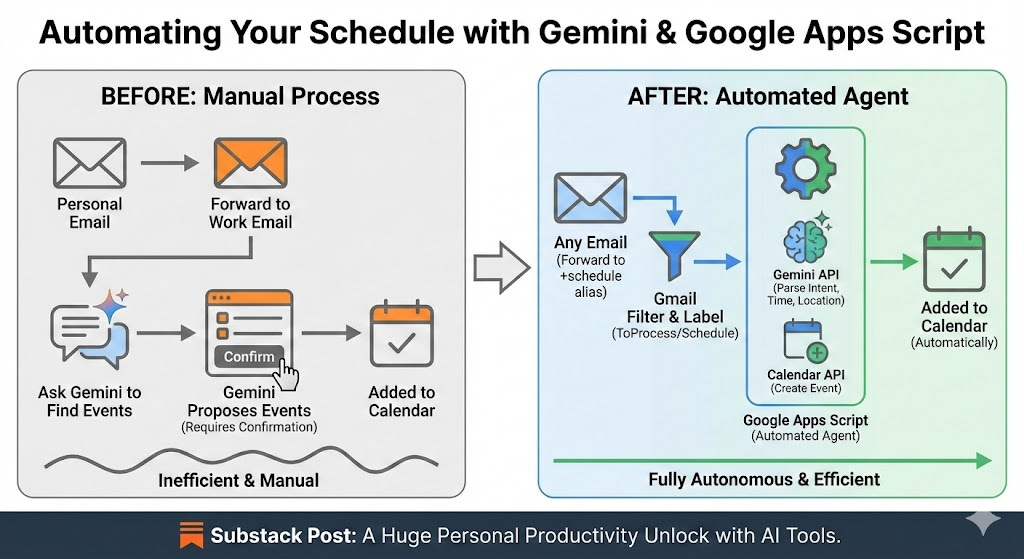
What was I doing? I was forwarding calendar events, hotel reservations, flight reservations, car rentals, and dinner reservations from my personal account to my work account - and then saying to Gemini “I just forwarded a bunch of events to my email - please add them all with full details to my calendar.” It would go through and read them all and say, “Here’s what I found - I will add these five things to your calendar if you say ‘yes’” and ask me to confirm. I would say ‘yes’ and it would add them all to my calendar. Helpful, yes. But I thought there must be a way to fully automate this.
So I went into Gemini 3 Pro and typed the following: “I want to build an agent in Gemini that does the following. I want to be able to forward an email to a specific address (e.g. steve+schedule@intelligencebyintent.com) and have whatever I send automatically get added to my calendar. How do I do that?”
It came back and said “This is a fantastic automation idea. The most robust way to build this “Agent” right now - without paying for expensive third-party automation tools like Zapier - is to use Google Apps Script combined with the Gemini API.”
It then instantly created two files for me - a setup guide and the exact script I needed to put in place in order to make this work. TL;DR: it worked perfectly. Here’s what it created for me:
Setup Guide:
One Prompt, One Agent
This guide uses Google Apps Script (free with your Google account) to connect Gmail, Gemini, and Calendar.
Step 1: Get a Gemini API Key
Go to Google AI Studio.
Create a new API key (or use an existing one).
Copy the key string; you will need it in Step 3.
Step 2: Set up the Gmail Filter
We need to tell Gmail to label the specific emails you want the agent to see.
Open Gmail.
In the search bar, click the Show search options icon (filters).
In the To field, type your specific scheduling email alias:
Example: steve+schedule@intelligencebyintent.com
Note: You don’t need to register this alias anywhere. If you own the domain, adding +anything to your username works automatically.
Click Create filter.
Check Apply the label and create a new label named: ToProcess/Schedule (or whatever you prefer, just match it in the code).
Click Create filter.
Step 3: Create the Script
Go to script.google.com.
Click New Project.
In the editor, paste the code from the Code.gs file provided above.
Crucial: Find the line const GEMINI_API_KEY = ‘...’ and paste your actual API Key there.
Save the project (Disk icon) and name it “Gemini Calendar Agent”.
Step 4: Test Manually
Send an email to yourself (to the address yourname+schedule@yourdomain.com) with a body like:
“Lunch with Sarah tomorrow at 12pm at The Ivy.”Verify in Gmail that the email has the label ToProcess/Schedule.
Go back to the Script Editor.
Select the function processEmails from the dropdown at the top.
Click Run.
You will be asked to grant permissions (Gmail, Calendar, external service). Allow them.
Check the Execution Log at the bottom. It should say “Event created”.
Check your Google Calendar!
Step 5: Automate It (The “Agent” Part)
To make this run automatically without you clicking “Run”:
In the Apps Script sidebar, click on Triggers (the alarm clock icon).
Click + Add Trigger.
Configure it as follows:
Choose which function to run: processEmails
Select event source: Time-driven
Select type of time based trigger: Minutes timer
Select minute interval: Every minute (or Every 5 minutes)
Click Save.
Usage
Now, simply forward or send any email to yourname+schedule@yourdomain.com. Within a minute, the script will:
Detect the email.
Send the content to Gemini to understand the intent, time, and location.
Add it to your calendar.
Remove the label so it isn’t processed twice.
It also created a code.gs file (‘calendar agent script’) which I’m copying here:
/**
* GEMINI EMAIL-TO-CALENDAR AGENT (PRODUCTION VERSION)
* * Instructions:
* 1. Copy your API KEY into the variable below.
* 2. Ensure the MODEL_NAME matches the one you fixed.
*/
const GEMINI_API_KEY = ‘YOUR_GEMINI_API_KEY_HERE’;
const GMAIL_LABEL_NAME = ‘ToProcess/Schedule’;
const CALENDAR_ID = ‘primary’;
const MODEL_NAME = ‘gemini-flash-latest’; // <--- Update this to the model that worked for you
function processEmails() {
// 1. Check for the label
const label = GmailApp.getUserLabelByName(GMAIL_LABEL_NAME);
if (!label) return; // Silent fail if label doesn’t exist yet
// 2. Process up to 5 threads
const threads = label.getThreads(0, 5);
if (threads.length === 0) return;
for (const thread of threads) {
const messages = thread.getMessages();
const lastMessage = messages[messages.length - 1];
// 3. Parse with Gemini
const eventDetails = parseEmailWithGemini(
lastMessage.getSubject(),
lastMessage.getPlainBody(),
lastMessage.getFrom()
);
if (eventDetails) {
try {
// 4. Create Event
createCalendarEvent(eventDetails);
// 5. Remove Label (Mark as done)
thread.removeLabel(label);
console.log(`Processed: “${eventDetails.title}”`);
} catch (e) {
console.error(`Failed to create event for “${lastMessage.getSubject()}”: ${e.message}`);
}
} else {
console.log(`Skipped: Gemini found no event in “${lastMessage.getSubject()}”`);
// Optional: Remove label anyway to stop infinite loops?
// thread.removeLabel(label);
}
}
}
function parseEmailWithGemini(subject, body, sender) {
const endpoint = `https://generativelanguage.googleapis.com/v1beta/models/${MODEL_NAME}:generateContent?key=${GEMINI_API_KEY}`;
const timeZone = Session.getScriptTimeZone();
const now = Utilities.formatDate(new Date(), timeZone, “yyyy-MM-dd’T’HH:mm:ss”);
const systemPrompt = `
You are a calendar API assistant. Current time: ${now} (${timeZone}).
Extract event details from the email. Return ONLY raw JSON.
Format: {”title”: “string”, “startTime”: “ISO8601”, “endTime”: “ISO8601”, “location”: “string”, “description”: “string”}
If duration is unknown, assume 1 hour. If no event exists, return null.
`;
const payload = {
contents: [{
role: “user”,
parts: [{ text: systemPrompt + `\n\nSubject: ${subject}\nBody: ${body}` }]
}]
};
const options = {
method: ‘post’,
contentType: ‘application/json’,
payload: JSON.stringify(payload),
muteHttpExceptions: true
};
try {
const response = UrlFetchApp.fetch(endpoint, options);
const json = JSON.parse(response.getContentText());
if (json.error) return null;
let text = json.candidates?.[0]?.content?.parts?.[0]?.text;
if (!text) return null;
// Clean Markdown
text = text.replace(/```json/g, ‘’).replace(/```/g, ‘’).trim();
return JSON.parse(text);
} catch (e) {
console.error(”Gemini Parse Error:”, e);
return null;
}
}
function createCalendarEvent(details) {
const calendar = CalendarApp.getCalendarById(CALENDAR_ID);
calendar.createEvent(
details.title,
new Date(details.startTime),
new Date(details.endTime),
{ description: details.description, location: details.location }
);
}
Needless to say, I followed the directions and everything worked. Amazing. I’ve now tested it, and I’m able to forward anything (even emails that include things like “Make this a meeting with Stew Bloom @ 2PM on this upcoming Friday”), and it processes it correctly.
The Result: It Just Works
The specific script above - which successfully automated my calendar with zero manual input - is a personal productivity win. But for a business leader, the implications are much larger.
We often talk about the “build vs. buy” decision in enterprise software. AI is introducing a third option: build-it-yourself (instantly).
This experiment proves that the friction between identifying a business problem and deploying a software solution is disappearing. Today, a marketing manager can build a script to analyze sentiment; a finance director can automate data formatting; an HR lead can build an onboarding agent - all without drawing on limited engineering resources.
Three Questions for Your Leadership Team:
Efficiency: How many hours are your high-value teams losing to repetitive tasks that they could now automate themselves?
Innovation: How do we encourage a culture of “Citizen Development” where employees are rewarded for building their own micro-tools?
Governance: As employees start building their own software, how do we ensure security and data privacy without stifling this new capability? (Note: The script above uses API keys, which requires a conversation about data security policies).
The era of waiting for IT to build simple tools is over. The tools are here; the strategy is up to you.
I write these pieces for one reason. Most leaders do not need another tutorial on Google Apps Scripts or Vibe Coding; they need someone who will sit next to them, look at where employees are filing IT tickets or waiting on developers for simple automation, and say, “Here is where your people can now build their own solutions, here is where you still need engineering resources, and here is how we keep all of it secure and governed.”
If you want help sorting that out for your company, reply to this or email me at steve@intelligencebyintent.com. Tell me what repetitive workflows are eating your team’s time, where your IT backlog is longest, and what your current policy is on employees using AI tools. I will tell you what I would test first, which processes are ripe for Employee Development, and whether it even makes sense for us to do anything beyond that first experiment.